
Character Rigging and Skinning Explained: Unity's Humanoid Rig vs Generic
You drop a character into Unity, hook up a run cycle you grabbed from Mixamo, hit play, and the thing folds in half. Or the forearms twist like a candy wrapper. Or the model just stands there in a T-pose while the Animator window insists the clip is definitely playing. Nine times out of ten the animation is fine. The problem is the rig underneath it, and the skinning that ties the mesh to that rig.
Rigging gets skipped by a lot of devs because it looks like a specialist job. It is one. But you do not need to build rigs to ship a game, you need to know enough to spot a bad one before it eats a week of your schedule. Here is the part that actually matters.
Rig, skeleton, armature: three names for the same thing
A character goes through three stages before it can move at all, and mixing them up is where most confusion starts.
- Modeling gives you the mesh. Silhouette, topology, UVs, textures.
- Rigging builds the skeleton inside that mesh. A hierarchy of bones (Blender calls them an armature, Maya calls them joints) with parent-child relationships that mimic how a real body pivots.
- Skinning attaches the mesh to the skeleton. Every vertex gets told which bones move it and by how much.
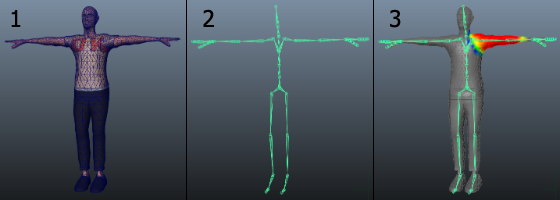
The modeling, rigging, and skinning pipeline, straight out of the Unity 6.4 manual.
The important mental shift: a bone is not a physical object. It is a transform. Position, rotation, scale, and a parent. That is the whole thing. When you animate, you are recording rotations on transforms. Nothing about a bone knows it is a femur. That is why a "bone" can just as easily drive a tank turret or a swinging lantern.
Skinning is where the quality actually lives
Every vertex in a skinned mesh carries a small list of bone influences and weights. Weights on one vertex add up to 1.0. If the elbow vertex is 0.5 upper arm and 0.5 forearm, it splits the difference when the arm bends, which is what makes skin look like it is stretching instead of snapping.
Unity limits this to four influences per vertex by default. You can change it with the Skin Weights property on the Rig tab of the model importer, and under the hood Unity's mesh API can carry up to 255 weights per vertex if you set the importer to Custom and raise maxBonesPerVertex. You can also cap it globally at runtime through Quality Settings, which is how you ship One Bone skinning on a low-end mobile tier and four bones everywhere else.
Should you raise it above four? Almost never. Four is the sweet spot for game characters. If your mesh needs eight influences to stop deforming badly, the fix is usually better weight painting or a couple of helper bones, not more influences per vertex.
If a character looks great in the viewport and terrible in motion, you have a skinning problem, not a modeling problem. Bad weights hide until something bends past 45 degrees.
The two failure modes you will see constantly:
- Candy wrapper twist. The forearm rotates and the mesh pinches to nothing halfway down. Fix: twist bones, sometimes called roll bones, that take a fraction of the wrist rotation and spread it up the arm.
- Shoulder collapse. Raise the arm and the deltoid caves in. Fix: better weights around the clavicle, plus enough edge loops in the shoulder to actually deform. This is the point where clean retopology stops being an aesthetic preference and becomes load-bearing.
Unity's Humanoid rig vs Generic: the choice that trips everyone up
When you import a model, the Rig tab asks for an Animation Type. The two that matter are Humanoid and Generic, and the difference is not cosmetic.
Humanoid tells Unity to map your skeleton onto an abstract human template called an Avatar. It needs a minimum of 15 bones arranged in a recognizable human hierarchy, roughly hips to spine to chest to shoulders to arm to forearm to hand, plus hips to legs to feet. Unity tries to auto-map on import. Get a green check next to Configure and you have a valid Avatar as a sub-asset of your model.
That Avatar buys you retargeting, which is the actual point. Any humanoid clip can play on any humanoid rig, regardless of bone names, proportions, or hierarchy depth. That is why a Mixamo animation works on a character that has never heard of Mixamo. Unity converts the clip into a normalized muscle space and reprojects it onto whatever Avatar you point it at.
Generic is everything else. A dragon, a spider, a teakettle, a mech. Generic has one requirement: designate a Root node, which Unity uses as the model's center of mass for root motion. No Avatar, no retargeting, no muscle limits. Clips are bound to bone names, so a Generic clip only plays correctly on a skeleton with matching bone names.
Pick Humanoid when
Your character is a biped and you want to reuse animation libraries. Mixamo, marketplace anim packs, mocap, or one shared locomotion set across five different character models. Retargeting saves you an absurd amount of time and is basically the reason Humanoid exists.
Pick Generic when
Your creature is not human shaped, or when the animation was hand-authored for that exact skeleton and you want it played back with zero drift. Humanoid retargeting is an approximation. Feet slide slightly, fingers get flattened into a simplified representation, and contact-heavy animations (climbing a ledge, a two-hand weapon grip) can drift a few centimeters. For a hero traversal move, that few centimeters is the whole animation.
The other Humanoid gotcha nobody warns you about: extra bones are not retargeted. Tails, capes, ponytails, backpack straps and weapon holsters all live outside the Avatar definition. A retargeted humanoid clip will not touch them. You drive those separately with physics, constraints, or a secondary system. Not a dealbreaker, just plan for it instead of discovering it two days before a milestone.
The Optimize Game Objects trap
The Rig tab has an Optimize Game Objects checkbox that strips the bone GameObjects out of your hierarchy and keeps the skeleton in an internal, more cache-friendly form. It is a real performance win on crowds, and it also means you can no longer find mixamorig:Head in the hierarchy to parent a hat to.
That is what Extra Transforms to Expose is for. Add the handful of bones you genuinely need at runtime (head, both hands, weapon sockets) and leave the rest optimized away. Worth knowing: optimized meshes match bones by name rather than by order, which is usually a benefit but will bite you if you swap a mesh out from under a prefab variant and the names do not line up.
What to check before you buy a rigged character
Marketplace listings love the word "rigged" and it means very little on its own. Before you pay, look for:
- Humanoid compatibility, stated explicitly. If the seller does not say the Avatar configures cleanly in Unity, assume you will be hand-mapping bones.
- A T-pose or A-pose bind pose. Unity wants a T-pose to build the Avatar. There is an Enforce T-Pose option in the Avatar window, but starting from a sane bind pose is far less painful.
- Sane bone names. "LeftArm" and "RightForearm" auto-map. "Bone_047" does not.
- Twist bones in the forearms and thighs. Their presence is a decent proxy for whether anyone actually tested the deformation.
- A bone count that matches the target platform. 60 to 90 bones is normal for a game biped with fingers. 300 is a film rig and will cost you.
- An included test animation. Any clip at all, so you can see it move before you commit.
Most sellers on DevLoot list this stuff in the description, and if it is missing, ask. A seller who cannot answer "does the Avatar configure cleanly" is telling you something.
Rigging is not a topic you master in an afternoon, but knowing the difference between a weighting problem and a retargeting problem will save you from rebuilding a character that was never broken. If your character arrives in Unity at the wrong scale or lying face down before you even get to the rig, that is a separate fight, and we covered it in exporting from Blender to Unity without breaking scale and rotation.
Hero image: Sintel hand rig by Angela Guenette, Ben Dansie and Fama Clamosa, via Wikimedia Commons, CC BY-SA 3.0.
