
Unity Input System vs Legacy Input Manager: Which to Use in 2026 (and How to Migrate)
You open a project you have not touched since last year, press Play, and the console spits this at you before a single frame renders:
InvalidOperationException: You are trying to read Input using the UnityEngine.Input class, but you have switched active Input handling to Input System package in Player Settings.Congratulations, you have met the Unity Input System. Usually by accident, usually five minutes before you wanted to be doing something else. Here is what actually changed, which of the three workflows to pick, and a migration order that does not eat a whole week.
Two input systems, one of them is being kept alive out of politeness
Unity ships two ways to read input. The legacy Input Manager is the built-in UnityEngine.Input class plus that list of named axes in Project Settings that everybody has scrolled past. The Input System package (com.unity.inputsystem, currently at 1.17) is the replacement, and it has been the replacement for years now.
Here is the part that settles the argument. The Unity 6.3 LTS manual now files the Input Manager under "Legacy Input" and describes it as deprecated, while the package gets "newer, more flexible, and better supported." Fresh Unity 6 projects come with the package installed and a default action asset already assigned as project-wide actions, so you get Move, Look, Jump, Attack, Sprint and a complete UI map before you write a line of code.
The old system will not explode tomorrow. But every new feature, device backend and bug fix goes into the package. If you are starting a project in 2026, this is not a real decision.
The three workflows, and which one you actually want
Most of the confusion around the Input System comes from tutorials picking different workflows without saying so. There are three, they are all valid, and they are not interchangeable.
1. Read the device directly
Skip actions entirely and poll the hardware:
if (Keyboard.current.spaceKey.wasPressedThisFrame) Jump();
Vector2 move = Gamepad.current.leftStick.ReadValue();
Closest thing to the old Input.GetKeyDown feel. Great for a throwaway prototype, terrible for anything you ship, because you just hard-coded a keyboard and a gamepad into your gameplay code. Also note Gamepad.current is null when no pad is connected, which is a NullReferenceException in Update, not a friendly warning.
2. Actions plus references (this is the one)
Unity's own docs call this the recommended workflow, and they are right. You define actions in the Input Actions editor, grab references in Start, read them in Update:
InputAction moveAction, jumpAction;

void Start() {
    moveAction = InputSystem.actions.FindAction("Move");
    jumpAction = InputSystem.actions.FindAction("Jump");
}

void Update() {
    Vector2 move = moveAction.ReadValue<Vector2>();
    if (jumpAction.WasPressedThisFrame()) Jump();
}
Your code asks for "Move" and does not care whether that came from WASD, a left stick, or a virtual joystick on a phone screen. That indirection is the entire point of the system.
3. Actions plus the PlayerInput component
PlayerInput adds a layer on top: it wires actions to methods on your MonoBehaviour through the Inspector, so OnMove and OnJump get called for you. It also handles device assignment and split-screen for local multiplayer, which is genuinely a lot of code you do not have to write.
Two things to know before you commit. First, the default Behavior setting is Send Messages, which uses reflection, so switch it to Invoke Unity Events or Invoke C# Events on anything performance-sensitive. Second, when PlayerInput is in play you must read from that component's copy of the actions, not InputSystem.actions, because PlayerInput filters devices per player. Bypass it and your second controller quietly drives player one.
The Input System is not harder than the old one. It is front-loaded. You pay the setup cost once in the editor instead of paying it forever in if-statements scattered across twelve scripts.
The Active Input Handling trap
Back to that exception at the top. Installing the package prompts you to enable the new backends, which disables the old ones and restarts the editor. Any third-party script still calling Input.GetAxis breaks instantly, and older asset packs are full of those calls.
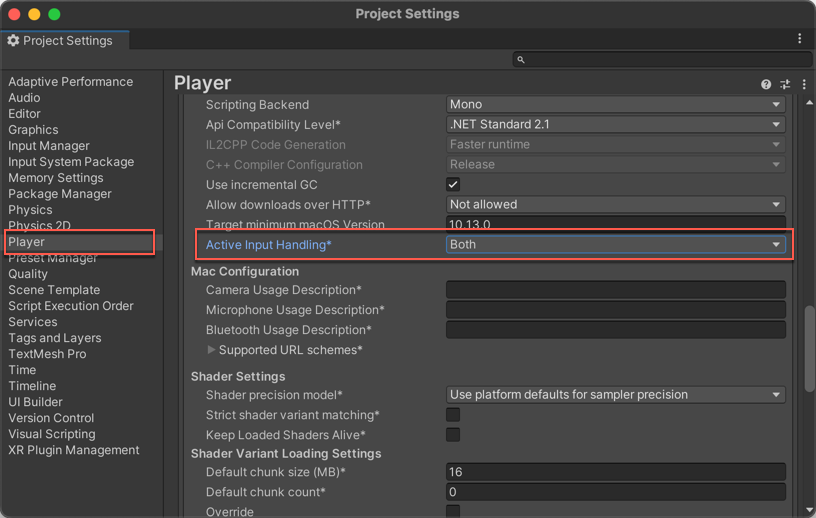
Active Input Handling lives in Project Settings, Player, Other Settings. Credit: Unity Input System documentation
The escape hatch is Both, in Project Settings under Player, Other Settings, Active Input Handling. With Both selected, legacy calls and the new package run side by side, and both ENABLE_LEGACY_INPUT_MANAGER and ENABLE_INPUT_SYSTEM are defined in your build. Changing the setting requires an editor restart, every time.
Both is a bridge, not a destination. It costs you a little memory and a lot of clarity, and it lets a half-migrated project sit in limbo for months. Use it to keep shipping while you convert scripts, then turn it off.
Bindings are where the real work lives
Once actions exist, the interesting part is bindings, and a few features save serious time:
- Composite bindings. WASD is not four separate actions. It is one 2D Vector composite with up, down, left and right parts feeding a single Move action. You can duplicate part bindings so arrow keys ride the same composite.
- The Listen button. Instead of hunting through the control picker tree, hit Listen and press the button you want. It fills the path for you.
- Generic before specific.
<Gamepad>/buttonSouthmatches every pad.<DualShockGamepad>/buttonSouthonly matches PlayStation. Bind generic unless you have a real reason not to. - Wildcards. Type a path manually with the T button and
<Touchscreen>/touch*/presscovers every finger instead of touch0, touch1, touch2. - Control schemes. These are how you know whether to draw an E prompt or an X button prompt, and they are free once your bindings are tagged.
Action maps matter too. Gameplay, UI, Vehicle, Menu: separate maps you enable and disable as a group. It is the cleanest way to stop the player from firing a weapon while the pause menu is open, and it beats a pile of booleans.
A migration order that does not wreck your week
If you are converting an existing project, do it in this order:
- Set Active Input Handling to Both. Nothing breaks, you keep working.
- Create your action asset and assign it as project-wide. Build out maps and actions before touching a single script.
- Convert one system at a time. Player movement first, since it is the most bound and the easiest to feel when it is wrong.
- Swap the UI event system last. The package needs the Input System UI Input Module, and the swap is a one-button fix on the EventSystem object that everyone forgets until menus stop responding.
- Search the whole project for
UnityEngine.Input.and kill the stragglers, including anything inside imported packages. - Flip Active Input Handling to Input System Package only, restart, and fix whatever screams.
Budget a day for a small project and a week for something with vehicles, menus and local co-op. If you are also planning networked play, get input sorted first, because netcode built on top of half-migrated input is miserable to debug. Our Unity multiplayer netcode comparison covers what comes after.
When staying on the old system is fine
Fine if you ship in the next two months and input already works. Fine for a game jam, or a tiny mobile project with two buttons.
It stops being fine the moment you need runtime rebinding, local multiplayer, more than one gamepad, touch alongside keyboard, or accessibility options. Each of those is either built in to the package or a weekend of hand-rolled misery on the old one.
One last thing: input is not where your frame time goes. Do not migrate hoping for performance. If your game is chugging, the culprit is in draw calls, physics, or garbage allocation, not in reading a stick value. Migrate because the old system is a dead end.
Plenty of controller and character packs on DevLoot now ship with an action asset in the box, which saves rebuilding the same Move and Look bindings every project. Worth checking before you buy.