LOD in Unity Explained: LOD Groups vs the New Mesh LOD (and When to Use Each)
Your scene runs fine until you point the camera at the horizon. Then the frame time doubles, the profiler shows a wall of vertex work, and every rock, tree, and fence post in a two kilometer radius is rendering at full detail even though it covers nine pixels on screen. That is the problem level of detail exists to solve, and Unity now gives you two very different tools for it: the classic LOD Group component and the newer Mesh LOD system that shipped with Unity 6.2 and is now part of Unity 6.3 LTS. They solve the same problem in different ways, and picking the wrong one costs you either memory or authoring time.
Why distant triangles are eating your frame rate
A mesh costs roughly the same to process whether it fills the screen or sits ten pixels tall in the distance. The GPU still transforms every vertex, and tiny on-screen triangles are actually worse per pixel because of how GPUs shade in 2x2 pixel quads. A 20K triangle rock rendered at the far end of your map is almost pure waste.
A distant object does not need fewer pixels. It needs fewer triangles. The cheapest vertex is the one you never submit.
LOD swaps the mesh for a simpler version as it gets smaller on screen. Done right, nobody ever notices. Done wrong, players watch trees snap between shapes as they walk, which is the famous LOD popping every open world game fights.
How LOD Groups actually work
The LOD Group component is the classic approach and still the default for most projects. You author two to four versions of a mesh (LOD0 is the full detail one), parent them under one GameObject with a LOD Group, and set the screen relative height where each level takes over. When the object drops below the last threshold, Unity culls it entirely, which is often the biggest win of all for small props.
A few things people miss:
- Thresholds are screen height, not distance. A huge building hits LOD1 much farther away than a mug does. Think in terms of how big the object looks, not how far it is.
- LOD Bias lives in Quality settings. It scales every threshold globally, so your Low preset can switch to cheap meshes earlier without touching a single prefab.
- Each LOD level is a separate mesh with its own renderer. That means duplicate vertex buffers in memory and extra GameObjects in the hierarchy. On a foliage-heavy scene this adds up fast.
The crossfade catch
LOD Groups support crossfading to hide the pop, and it works nicely right up until you enable the GPU Resident Drawer, the Unity 6 feature that batches your static world through the BatchRendererGroup API. Animated crossfade is not supported there. Depending on your Unity version, objects either snap between LODs or get quietly excluded from instanced rendering so the fade can play, which throws away the draw call savings you turned the feature on for. If your project leans on the Resident Drawer (and for large scenes it should, see our breakdown of draw calls and batching in Unity), stick to speed tree style static crossfade or accept the snap and tune thresholds so it happens when objects are tiny.
Mesh LOD: the new way in Unity 6
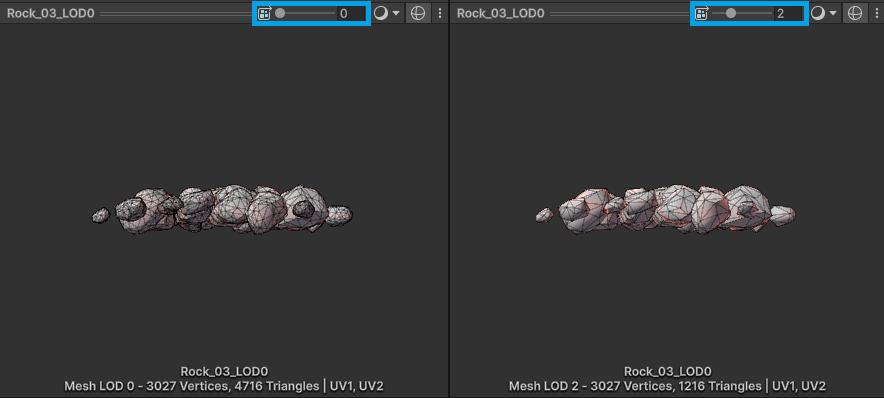
Unity 6.2 added something devs have been asking about for a decade: automatic LOD generation at import time. Tick Generate Mesh LODs in the model importer, hit Apply, and Unity builds a chain of simplified levels by collapsing edges while trying to preserve the silhouette.
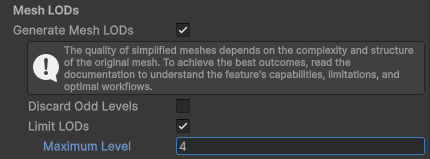
Mesh LOD import settings in the Unity 6 model importer. Image credit: TheGamedev.Guru.
The clever part is the storage. Mesh LOD does not create extra GameObjects or duplicate meshes. Every level lives in the original mesh's index buffer and reuses the same vertex buffer, with each LOD holding roughly half the indices of the one above it. Worst case memory overhead is about double the index buffer, which is tiny next to a LOD Group duplicating full vertex data three times over. Selection is handled per mesh by the renderer, and you control how aggressively levels kick in with the Mesh LOD Threshold under Quality settings, plus per-model options like Limit LODs and Discard Odd Levels.
The constraints are reasonable: the simplifier wants at least 256 triangles to start and stops around 64, so it does nothing useful for already low-poly assets. It shines on organic, dense stuff. Rocks, cliffs, scanned props, sculpted debris. It is noticeably less happy on hard surface meshes with long thin triangles or tight UV seams, where edge collapse can visibly dent the silhouette. Always scrub the LOD preview slider in the inspector before shipping it.
LOD Group or Mesh LOD? Pick like this
- Mesh LOD when the asset is dense and organic, you have hundreds of them, and hand-authoring LODs was never going to happen. Free performance for a checkbox.
- LOD Groups when you need art direction per level (swapping a detailed tree for a billboard card), when the low levels should drop materials or parts entirely, or when you want the final culled state for small props. An automatic simplifier can only remove edges. It cannot decide that LOD2 does not need the door handles.
- Both is fine. Hero assets get authored LOD Groups, background filler gets Mesh LOD. That split matches how most teams already spend their art budget.
This is also worth checking when you buy assets. A pack that ships with authored LODs (or at least clean, uniform topology that auto-simplifies well) saves you real hours. It is one of the checkboxes we look for on packs listed on DevLoot, right next to sane polycounts and proper PBR maps.
Sane starting numbers
Every project differs, but these defaults will not embarrass you: LOD1 at roughly half the triangles of LOD0, LOD2 at a quarter, transitions around 60 and 30 percent screen height, and cull small props below 1 to 2 percent. Fill rate limited mobile titles can be far more aggressive. Then profile. LODs cut vertex cost, but if your frame is dying to overdraw or draw call count, the fix lives elsewhere (start with occlusion culling before assuming triangles are the villain).
When LODs backfire
Skip the whole exercise for stylized low-poly games where LOD0 is already 400 triangles. The simplifier has nothing to remove and a LOD Group just adds memory and management overhead for zero gain. Same for interior games where nothing is ever far away. And be careful stacking crossfade everywhere: fading renders both LOD levels at once during the transition, so a forest mid-fade briefly costs more than no LOD at all.
LOD is one of those systems that pays off exactly in proportion to how boring you keep it. Half the triangles, quarter of the triangles, cull the small stuff, check the silhouette. Unity 6 finally automating the tedious part is the best thing to happen to this workflow in years.