
Cinemachine 3 in Unity 6: Setup Guide and Upgrade Gotchas
You drop a Cinemachine camera into a fresh Unity 6 project, follow a three-year-old tutorial, and nothing matches. There is no "Virtual Camera" in the menu. The inspector looks different. Half the script snippets throw errors about a missing Cinemachine namespace. Welcome to Cinemachine 3, which is a big rewrite, and honestly a better one. Here is what changed and how to get a solid game camera running without fighting it.
What actually changed in Cinemachine 3
Cinemachine 2.x gave you a Virtual Camera with a giant inspector and hidden child objects doing the work. Version 3 throws that model out. The virtual camera is now a CinemachineCamera, and the behaviors that used to hide inside it are ordinary components you add to the same GameObject. No more hidden "cm" objects, which also makes prefabs and presets behave properly.
Other changes worth knowing, straight from Unity's own notes:
- One Tracking Target by default (plus an optional Look At target) instead of separate Follow and Look At fields everywhere.
- FreeLook is rebuilt around the Orbital Follow behavior, with radius scaling.
- A new Cinemachine Channel setting handles split-screen without burning Unity layers.
- Native Unity Splines replace the old Cinemachine spline code.
- Input axes are handled by an Input Axis Controller component, so you can wire the new Input System without a custom script.
The mental model flipped: the camera is a bag of small components, and you only add the ones you need.
Body and Aim: the two jobs of every camera
In 3.x you pick a Position Control (where the camera sits) and a Rotation Control (where it looks). That maps to the old Body and Aim slots, just with clearer names.
- Position Composer follows the target in screen space with dead zones and damping. It is the go-to for 2D and side-scrollers, and works well for top-down.
- Third Person Follow gives you the over-the-shoulder rig, with shoulder offset and camera side. Pair it with Rotation Composer or let your own input drive rotation.
- Orbital Follow is your FreeLook replacement for orbiting a target at a set radius.
- Rotation Composer keeps the look-at target inside a screen-space zone, with soft and hard limits.
- Follow is the plain "stay at an offset" option, useful for simple rigs.
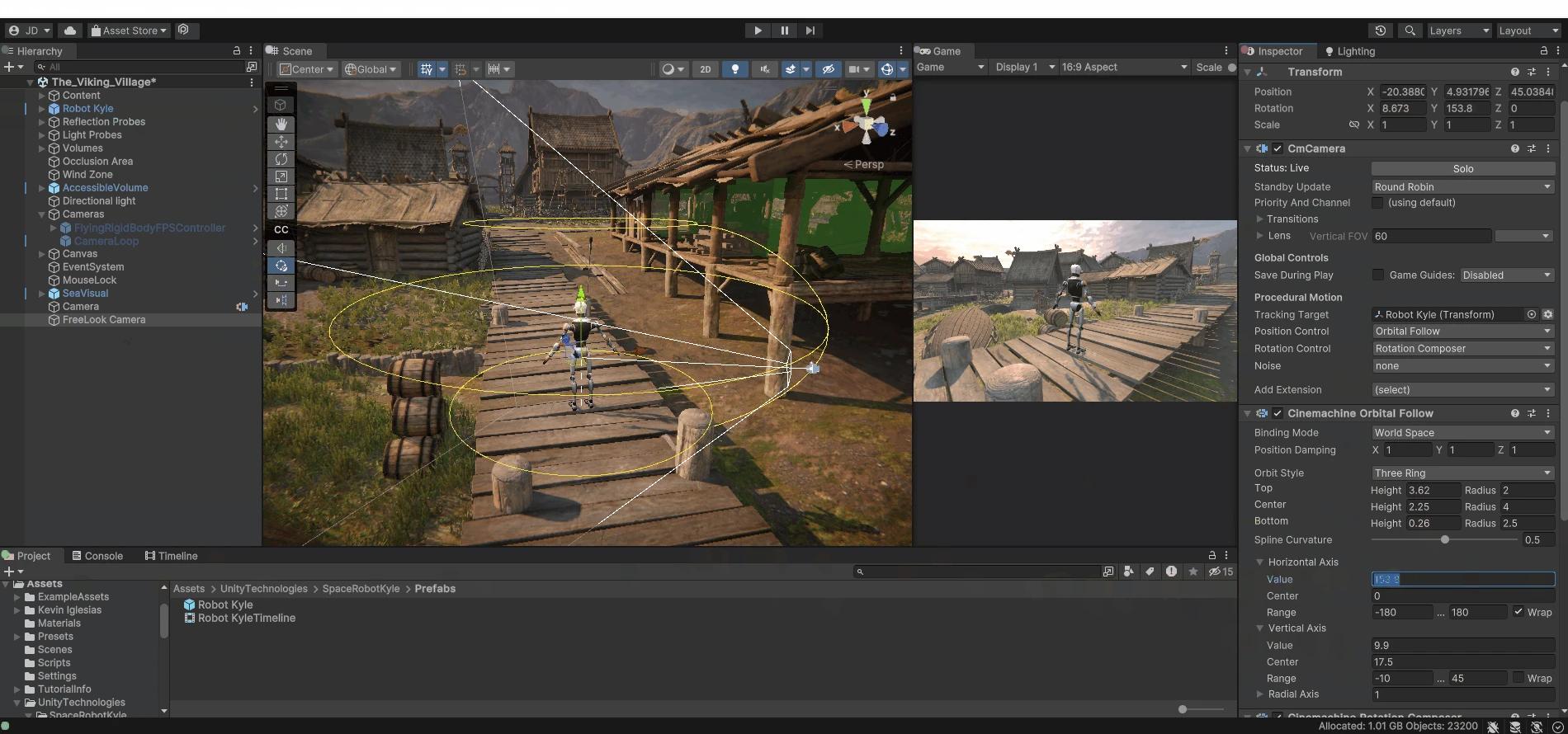
Image credit: Unity, "See what's new with Cinemachine 3"
A quick third-person setup that works
This takes about two minutes once you know the pieces.
- Make sure your Main Camera has a CinemachineBrain. Adding a Cinemachine Camera through the GameObject menu usually adds it for you.
- Create a Cinemachine Camera and set the Tracking Target to your player (or a child "camera root" transform near the head, which is better than the pivot at their feet).
- Set Position Control to Third Person Follow, tune shoulder offset and camera distance.
- Set Rotation Control to Rotation Composer if you want soft framing, or None if you rotate the target yourself.
- Add Cinemachine Deoccluder if walls keep eating the view, and Cinemachine Impulse Listener if you want camera shake.
Want an orbit camera instead? Use Orbital Follow, add an Input Axis Controller, and map it to your look action. If you already moved to the new Input System, that is the clean path. We broke down that migration in Unity Input System vs Legacy Input Manager.
Upgrading an old project (read this before clicking)
Unity ships an automatic upgrader, launched from a 2.x Virtual Camera or FreeLook inspector. It can upgrade a single object, a single scene, or the entire project. The docs are blunt about the risks, and they matter:
- Back up first. The entire-project upgrade cannot be undone and opens and saves every scene and prefab.
- Single-object upgrades can break script references, animation tracks and Timeline bindings. Prefer scene or project scope.
- The namespace changed from
CinemachinetoUnity.Cinemachine, and mostm_field prefixes are gone. Any custom scripts need manual fixes. - Layer-based split-screen filtering no longer works. Move to Channels.
- If your project leans on lots of custom Cinemachine code, Unity itself says staying on 2.x is reasonable.
Tip: where you can, reference CinemachineVirtualCameraBase in your scripts instead of the concrete 2.x classes. The upgrader can preserve those references because old and new classes share that base.
Common "why is my camera broken" fixes
- Camera does not move at all: check the Main Camera has a CinemachineBrain and the Cinemachine Camera has a Tracking Target assigned.
- Look At seems ignored: in 3.x, Rotation Control needs a Rotation Composer (or similar) and a target. An empty Look At with no behavior does nothing.
- Jitter on a physics character: set the Brain's Update Method to match how you move the target (Fixed Update for Rigidbody, Late Update for transform movement), or enable interpolation on the Rigidbody.
- Cuts feel abrupt: tweak the Brain's Default Blend, or set per-camera blends in a Custom Blends asset.
- Assembly errors after upgrading: restart the Editor. It really is that boring.
Camera feel is a design decision, not a setting
Dead zones, damping and shoulder offset change how a game feels more than most people expect. A tight dead zone feels snappy and arcade. Heavy damping feels cinematic but can make platforming mushy. Block out your level and test the camera there before you commit to art, a workflow we cover in Level Blockout and Greyboxing. Once the camera feels right, layer on shake and juice, which pairs nicely with the tools in Game Feel in Unity.
If you need characters, props and environments to actually put in front of that shiny new camera, the DevLoot marketplace has game-ready Unity assets from indie creators.
Bottom line
Cinemachine 3 asks you to relearn the names, not the ideas. Pick a Position Control, pick a Rotation Control, add only the extras you need, and treat the upgrader with respect. For a new Unity 6 project, start on 3.x and skip the tutorial confusion entirely.